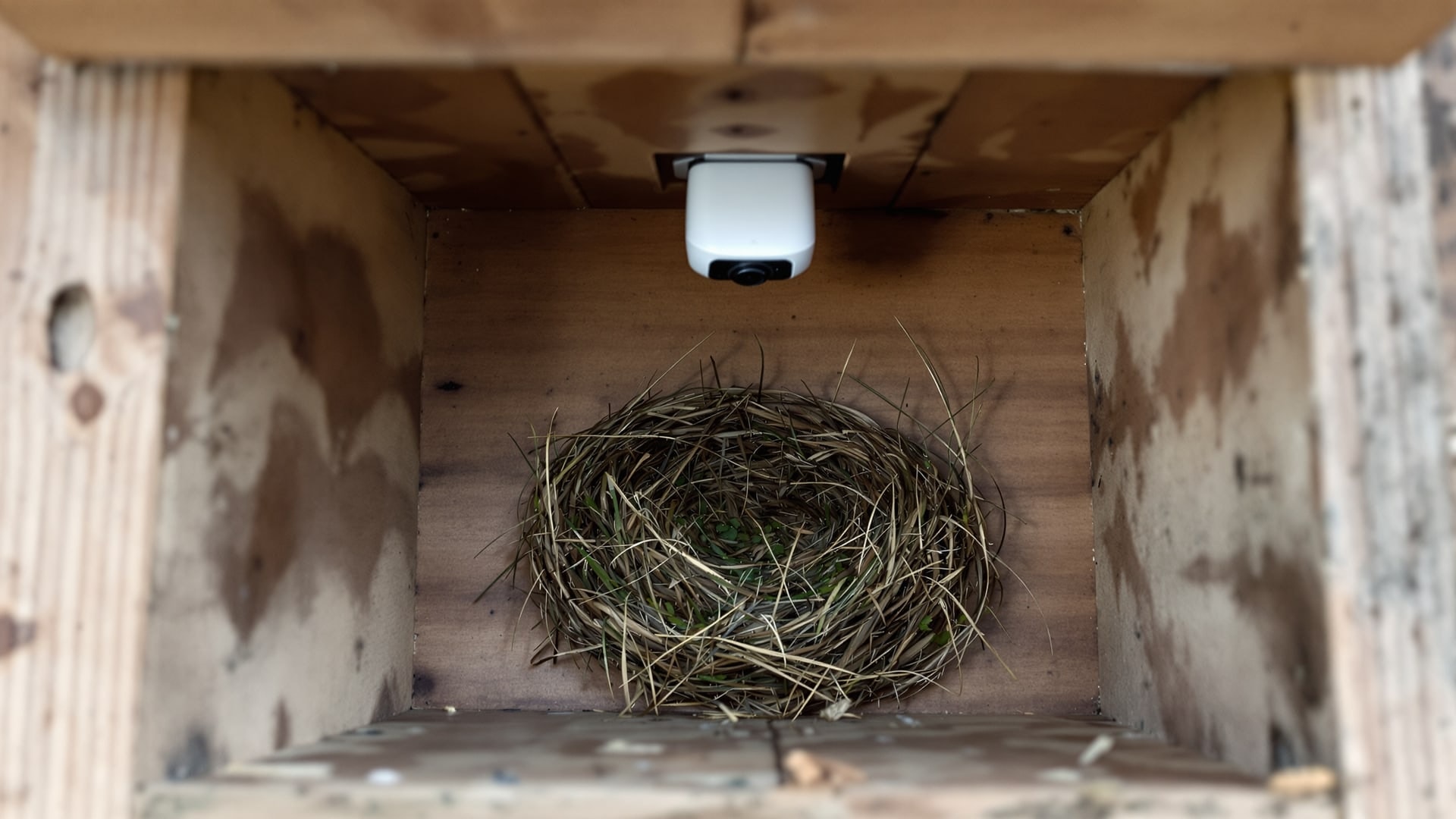
FAQ — WIFI IP camera
This is Handykam's longest and most practically useful guide. It was written for Handykam's 5MP WIFI camera, and it answers, in order, almost everything a non-technical person hits when putting a network camera into a bird box. Most of it applies to any comparable ONVIF network camera, not just this one.
General questions
What does IP stand for?
Internet Protocol. It is a technical name for a network-ready camera. There is more background in How do IP cameras work?.
Is the camera WIFI or wired?
Both. You set it up over WIFI. If the camera is near your router you can instead connect it with a network cable, so the signal travels along the cable rather than over the air — which is more reliable, and lets the camera draw power over the same cable.
Is the camera waterproof?
No. It is rated for indoor use, which in practice means inside a box. If you want it in the open, put the camera and its connectors inside a small waterproof enclosure with the lens and infra-red LEDs left clear.
Can the camera see in the dark?
Yes. Night vision switches on and off automatically and gives a crisp black-and-white image.
Does the camera have audio?
Yes, and it is good. In the app you turn it on with the speaker icon. In a nest box you will usually hear a brood before you see much.
What are the connections on the camera?
Two plugs. One is a 12v power input — a kit includes a power supply and DC cable, and plugging one into the other powers the camera. The other is a network socket supporting Power over Ethernet, so you can connect the camera directly to your network with Cat5 or Cat6, and if you power it from the network end you do not need the separate 12v supply at all.
WIFI questions
Does the camera have its own WIFI?
Yes, and this is the key to the easy setup. When you first plug the camera into the mains it creates its own WIFI network and starts transmitting immediately. You connect your phone straight to that and see the picture. Once connected you can then tell the camera to "hop" onto your home WIFI instead. The reason it works this way is so the camera can always be found, even before it knows anything about your network.
How do I connect to the camera's WIFI?
- Install the viewing app on your phone or tablet.
- Power the camera and wait about five minutes for it to settle.
- Open your device's WIFI settings and scan. The camera appears as
IPCAM-XXXXX, where the X's are a unique number. - Connect to it.
I powered up the camera but I cannot see its WIFI
Give it a few moments. Plug the camera into the power supply — if you are using a DC extension cable, try the power supply directly into the camera first. After a moment you will hear a faint click and the camera will start to warm up. Then check your device's WIFI list again for IPCAM-XXXXX.
If it still does not appear, the most likely reason is that the camera has been plugged into a network cable at some point. When the camera is on a wired network its WIFI switches off. To get it back you need to find the camera's IP address on your router, type that address into a browser, and reset the camera in its settings — then unplug the network cable and the WIFI returns.
I plugged the camera into the network and cannot see the WIFI
Same answer, and it is expected behaviour rather than a fault. Connecting to a router or switch makes the camera revert to a wired connection and disable its own wireless network.
Can the camera be on the same WIFI as all my other devices?
Yes, and normally it should be. Connect to the camera's own WIFI, go into the settings, have it detect your home network, and enter your WIFI password — usually printed on the router. Once it has joined your network it stops broadcasting its own.
App questions
What app does the camera use?
It shipped with a free third-party viewing app available for both major mobile platforms, with no adverts. Because the camera speaks the ONVIF standard, other apps can find and connect to it too.
Can I use other apps?
Yes. The camera is a standards-compliant ONVIF device, so it can be added to many viewers and to network video recorders. The bundled app was preferred simply because it exposed the recordings and the camera's own settings; third-party apps often show live video only.
What settings do I need for another app?
The camera publishes an RTSP stream. The pull string takes the form:
rtsp://user:password@192.168.1.109:554/1
Replace the user name and password with your own, and the IP address with your camera's actual address on your network. Port 554 is the camera's standard RTSP port. Note that you cannot view that RTSP address directly in a browser — for the browser you use the ordinary address, http://192.168.1.109, which brings up the camera's control panel.
Viewing, by app or browser
Can I view the camera away from home?
Yes. Once the camera has joined your home WIFI and you have paired it with your device in the app, it can be viewed from anywhere.
Can I view it in a browser?
Yes. The camera supports HTML5 and works in most browsers without a plugin while you are on the same network. To reach it in a browser from outside your home you would need to configure port forwarding on your router, which is why most people simply use the app — the app needs no router configuration at all. If you do open a camera to the internet, change the default password first; an internet-facing camera on default credentials is a genuine risk, not a theoretical one.
Product-security requirements from April 2024
The UK's consumer connectable product security regime took effect on 29 April 2024, according to the government's product-security guidance. It requires passwords to be unique to each product or capable of being defined by the user. Manufacturers must also provide information explaining how security issues with their products can be reported to them. The minimum period for security updates must be published, including both its length and an end date.
That update information should be available without asking first, in English, free of charge and understandable without prior technical knowledge.
If your camera also records people, read the guide to wildlife camera privacy and security.
Can a relative view the camera?
Yes, but they need to set it up while at your house: connect their device to your WIFI, install the app, and let it detect the camera. After that they can watch from their own home too.
Can I view it on my television?
It depends on the television. Some smart sets can display a network camera and some cannot. The simplest route is to cast your phone's screen to the television. For a permanent solution, a network video recorder connects the camera to the television and records in the background at the same time — see the DVR and NVR FAQ.
Recording
Can the camera record on its own?
Yes. Insert a micro SD card — anything from 1GB to 128GB, Class 10 — change the settings, and the camera will record automatically on motion or to a schedule. You can also press record in the app to capture video or stills manually, which is useful when you spot something. Recordings on the card are reviewed and downloaded through the app without taking the card out.
I want to record all the time. Can I?
Yes, with a network video recorder connected to your network. To record from this camera, the camera must be either wired directly to the recorder or on the same network as it — a setting you can change on the camera.
Do I need to remove the SD card to watch the recordings?
No. The app reads and downloads them over the network. When the card is full you can set it to overwrite the oldest footage.
Focusing
Can I re-focus the camera?
Yes. Gently hold the end of the lens and turn it, watching your phone or tablet to get the focus right. A good trick is to put a piece of newspaper at the distance you want to be sharp and focus on the text.
How do I focus it if it is already in a box?
Take it out. It is easier and safer to focus outside the box: measure the distance from the lens to where the nest will be — allowing for the height the nest will build up to — then hold the camera that far above newsprint and focus there.
Night vision
The camera is on, but I cannot see any lights on the front
You are not meant to. The LEDs around the lens are infra-red and invisible to the eye; they are what lets the camera see in the dark. They are switched by the light sensor under the lens, and come on at around 1 lux, at which point the picture changes to black and white.
At dawn and dusk the picture goes a strange red colour before switching
Normal. The camera is still in colour mode and it is not yet dark enough to switch. The redness comes from the camera's internal infra-red cut filter; as soon as it is dark enough the filter moves aside and the camera goes to black and white. There is more on how that filter works in the trail camera FAQ.
Positioning
Which bracket should I use?
Two were included: a swivel-and-tilt bracket and a C-shaped bracket. Either works; it depends on the shot you want. The C bracket comes with two small screws taped to a card — fit it with the camera on an empty table, because a dropped screw in grass is gone.
Can I put the camera outdoors?
Only inside something. It is rated for indoor use or anywhere with no moisture. Outdoors, put it in a small box with the lens and LEDs exposed.
Before you fit it
Fit cameras and put boxes up outside the breeding season, then leave them alone. Nesting birds are protected under the Wildlife and Countryside Act 1981 and disturbing some species at the nest requires a licence — see Natural England's guidance. The BTO's nest box guidance covers siting and hole size.